Building my portfolio - Part 1 - Serving my class files
The file sharing problem
As you probably know, I've been teaching computer science students on weekends, and one recurring issue I encountered was not being able to consistently share my class material with them.
Up until recently, I'd upload everything onto separate Google Drive folders (one folder per class) and share it with my students via a link set to "Anyone with the link" access. This got out of hand fast - everyone would share links with everyone else, and I couldn't re-arrange files without breaking their links. I also couldn't share my notes on the internet without pointing people to my personal Google Drive.
Around the same time, I was building my portfolio (which you're on right now) and had an idea of integrating the two - a dedicated route on my site for hosting all my class material, while still keeping Google Drive as my primary upload tool since its sync is easy to work with (especially when you install Drive for Desktop)
After some research, I landed on a syncing solution hosted on GCP: sync files from Google Drive to Cloud Storage buckets via a scheduled cron job, then serve those files directly on my portfolio. This post details how I built it, and how you can do the same.
The GCP architecture
Let's begin by looking at the different GCP services and flows I used to build this out. In total, there's 7 steps to this architecture:
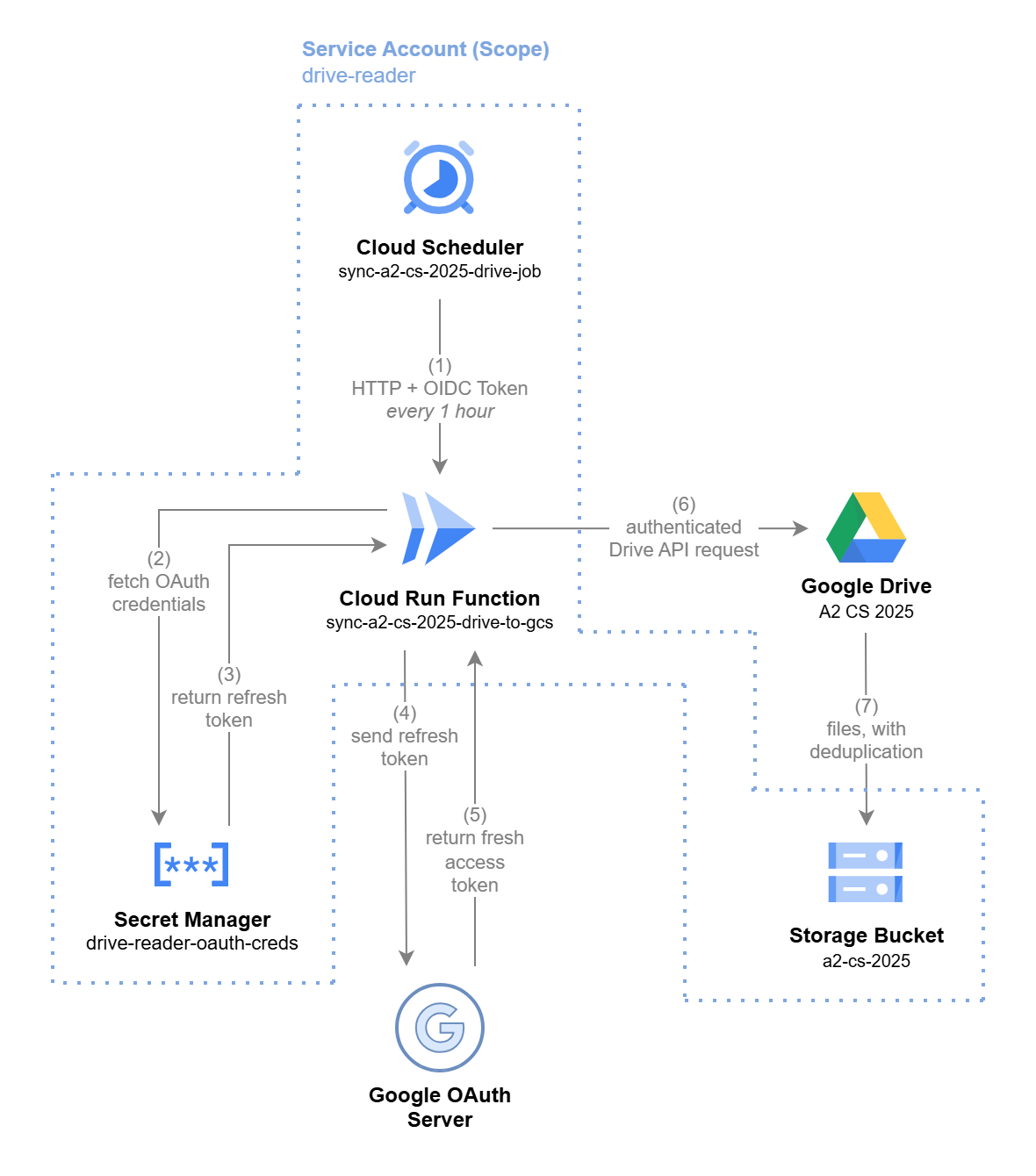
As of the time of writing this post, I've hosted content using this architecture for 4 different classes:
- CIE 9618 - A2 CS 2025 (a2-cs-2025)
- CIE 9618 - A2 CS 2024 (a2-cs-2024)
- CIE 9618 - AS CS 2024 (as-cs-2024)
- Edexcel 4CP0 - IGCSE CS 2024 (igcse-cs-2024)
What's a2-cs-2025?
The above diagram details the services in place for just one of the above classes - specifically, a2-cs-2025 - which is why each of those resources has a2-cs-2025 in its name.
In other words, I've replicated the aforementioned resources for each of my classes - only reusing the Service Account and Secret Manager OAuth Creds (why? because I was lazy, so technically these could've been replicated as well).
A note about the service account
You'll notice the dotted boundary in the diagram labeled Service Account (Scope): drive-reader. This represents the drive-reader service account.
A Service Account is a robot identity issued by Google Cloud that acts as the shared identity across our GCP resources.
Every action within that boundary - Scheduler firing, Cloud Run executing, Secret Manager being read, files being written to GCS - happens under the drive-reader identity. It was granted exactly the permissions it needs, and nothing more.
Google Drive and the Google OAuth Server sit outside that boundary deliberately. Drive access isn't controlled by GCP permissions - it traces back to my personal consent from a one-time OAuth flow (see below).
Describing the workflow
Step 1: Triggering the sync
Every hour, a Cloud Scheduler job fires an HTTP POST request at mu Cloud Run Function (see below).
I've locked down this function with --no-allow-unauthenticated - so all random HTTP requests are rejected.
Therefore - alongside the request - the Cloud Scheduler attaches an OIDC token. This is a signed digital badge issued by Google that proves the request is coming from our drive-reader service account. You can read more about how this exactly works in the official docs.
Cloud Run checks that token, verifies Google's signature, and only then allows the function to execute.
Steps 2–3: Fetching credentials from Secret Manager
The Cloud Run Function's first job is to retrieve the OAuth credentials stored in Secret Manager (drive-reader-oauth-creds). These were generated once, manually - I ran a local script, clicked "Allow" on a Google consent screen, and the resulting credentials were saved and uploaded to Secret Manager. They've lived there ever since.
What comes back is a JSON file containing, most importantly, a refresh token - which is a long-lived credential that proves I once consented to this app accessing my Drive.
Steps 4–5: Exchanging the refresh token for an access token
The function then sends that refresh token to the Google OAuth Server (oauth2.googleapis.com/token). In return, Google issues a fresh access token, valid for about ~1 hour.
This exchange happens on every run because access tokens expire quickly. Storing one directly would mean it's stale by the next time the function runs. The refresh token, by contrast, doesn't expire, which is why it's the credential worth storing securely.
Steps 6–7: Syncing files to GCS
With this fresh access token, the function calls the Google Drive API, targeting specific Google Drive folder IDs - one per class.
The fetched files are then written to the GCS bucket, with deduplication. Files that already exist in the bucket are skipped, keeping the sync efficient and avoiding unnecessary overwrites on every hourly run (and saving me money, lol).
The Cloud Run Function
Now that we understand the architecture, let's look at the code in the Cloud Run Function. The function is broken into two broad phases: authenticating with Google Drive, and syncing files to GCS.
But first, here's the configuration the function expects at runtime via environment variables:
1 2 3 4 5 6 7 8 9 10 11 12 13 14 15 | |
GDRIVE_FOLDERS maps each Drive folder ID to its allowed file extensions - so the function knows which folders to sync and which file types to care about. This allows me to skip any files that are in those folders but that I don't want my students to see.
SECRET_NAME points to the exact secret version in Secret Manager that holds our OAuth credentials.
Phase 1: Authenticating with Google Drive (Steps 2–5)
1 2 3 4 5 6 7 8 9 10 11 12 13 14 | |
This single function covers steps 2 through 5 in the diagram:
- Steps 2–3 -
SecretManagerServiceClientfetches the stored OAuth JSON from Secret Manager and parses it into a Python dictionary. - Steps 4–5 -
Credentialsis built from the refresh token, client ID, client secret, and token URI.
The creds.refresh(Request()) call is where the actual exchange happens - it sends the refresh token to Google's OAuth server and gets back a fresh access token, all in one line.
After this function returns, the function has a valid, short-lived access token it can use to talk to Google Drive.
Phase 2: Syncing files to GCS (Steps 6–7)
1 2 3 4 5 6 7 8 9 10 11 12 13 14 15 16 17 18 19 20 21 22 | |
This makes the authenticated Drive API request from step 6. A few things worth noting:
trashed=falseensures we don't accidentally sync files the user has deleted (i.e. in the trash).md5Checksumis fetched alongside each file's metadata - this is what allows us to deduplicate files next.- The
while Trueloop handles pagination, since the Drive API defaults to returning 100 files per page. It keeps requesting the next page untilnextPageTokenis absent.
1 2 3 4 5 6 7 | |
Before uploading anything, the function builds a map of every file already in the GCS bucket, keyed by filename and valued by its MD5 checksum.
One small thing: GCS returns MD5 hashes as base64, while Google Drive returns them as hex, so we decode and convert to normalise both to hex before comparing.
1 2 3 4 5 6 7 8 9 10 11 12 13 14 15 16 17 18 19 | |
The file is downloaded in 10MB chunks via MediaIoBaseDownload into an in-memory BytesIO buffer, which is then uploaded to GCS in one shot. The full file does end up in memory, so this isn't true streaming - for very large files (like 3-hour revision recordings), a pipe-based approach or GCS resumable upload would be more memory-efficient.
Files are only passed to this function if their MD5 checksum differs from what's already in the bucket, so unchanged files are never downloaded.
A word on rate limits
Both the Drive API and the Storage API have per-minute quotas. For a small class with a few dozen files this is a non-issue, but if you're syncing hundreds of files on every run, add exponential backoff.
The OAuth credentials JSON (client ID, client secret, refresh token) should never be committed to version control. Store it as a Secret Manager secret and fetch it at runtime, as shown above.
Cost
The entire infrastructure costs roughly $1.50/month to run, almost entirely driven by Cloud Run's memory allocation over hourly executions. Cloud Storage adds a negligible $0.05/month for file storage in asia-southeast1.
For a pipeline that runs 24/7, syncing class files automatically with zero manual intervention, I think that's a reasonable price to pay.
Future improvements
This setup has been running without issues for the last month now. Here's what I'd do differently if I were starting from scratch:
- Use Eventarc instead of polling, so that the sync can be triggered on Drive change events rather than on a fixed schedule.
- Add a simple webhook to notify students when new content is available.
Closing remarks
If you build something similar, the official GCP Python client docs are surprisingly readable and worth bookmarking.
You can find my code for the Cloud Function + all the gcloud CLI commands I used to deploy this stuff in my GitHub Repo.
Happy building!